


















Update history
November 6, 2026: Rechecked official lifetime-plan prices and separated them from the November 5 Lifetime Pro checkout example. USKFTO eligibility conditions and the offer deadline remain unverified.
PR / An independent USK feature about Forex Tester Online. Affiliate links may earn USK a commission. This is not an article operated by FTO.
Replay past markets in Forex Tester Online, check your rules, and improve the tool you are building. GPT and Claude can help turn a trading idea into a specification and code, while FTO provides a historical environment in which to try it.
This guide explains that workflow, with examples from our own data-checking project. We also look at the Lifetime Pro sale and a USKFTO checkout example supplied on November 5, 2026.
Three things to know
- FTO supports custom indicators and robots as well as manual testing.
- GPT or Claude can help define rules, write code, and review it. Testing the output is part of the job.
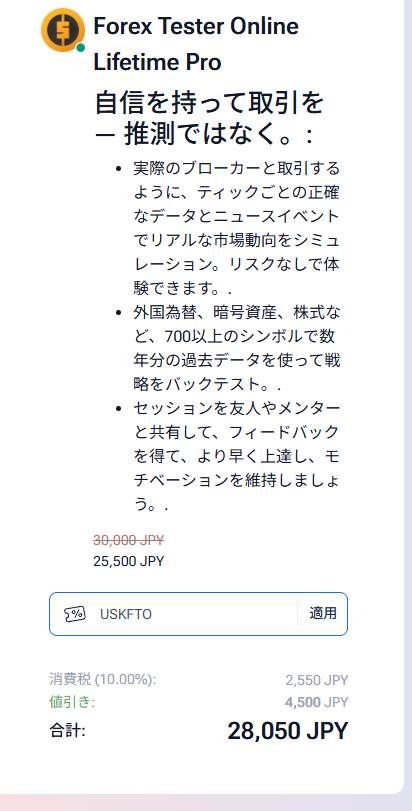
- The supplied Lifetime Pro checkout shows a total of JPY 28,050 after USKFTO, including the displayed 10% tax. This is a dated example, not a guaranteed price for every buyer.
What are ChatGPT and Claude?
Both are AI assistants you can work with through conversation. For this project, use them to turn an idea into a precise specification, explain unfamiliar code, propose changes and design checks. Their output still needs review and testing in the environment where it will run.

ChatGPT
ChatGPT is the service you open and use; GPT refers to OpenAI’s model family. You can discuss a rule, ask for a small code example and work through an error. Codex is OpenAI’s coding-focused agent, which can also work with project files and developer workflows when that access is available.

Claude /
Claude Code
Anthropic
Claude is Anthropic’s AI assistant. Its chat can help organize a specification, explain code and suggest an implementation. Claude Code is a developer tool that can read a repository, edit files and run commands. Using Claude chat and having Claude Code access are not the same thing.
The hero is a fictional illustration of building and checking tools, not an FTO screenshot. The OpenAI name and logo belong to OpenAI; the Claude name and logo belong to Anthropic. This independent USK article does not imply endorsement or a partnership with OpenAI or Anthropic.
Can you do this on a free plan?
You can start with a free chat plan to clarify a specification, understand code or try a small example. But a long conversation, many files, larger revisions and repeated debugging can consume the available usage and interrupt a session. A paid plan can provide different features or more capacity; it does not mean unlimited use or guaranteed correct code.
- ChatGPT Free may include limited Codex access, depending on the available features and rollout. Check the current plan and your account instead of assuming coding tools are always paid-only. ChatGPT plans ↗
- Claude’s free chat can help with code. The pricing page checked for this article lists Claude Code outside the Free plan, so confirm the plan that includes the developer tool if you need it. Claude plans ↗
- Usage depends on factors such as the model, conversation length and the amount of work. Limits and included features can change. API usage also has its own billing and any applicable credit conditions; do not assume a chat subscription covers it.
AI access and FTO’s plan are separate. The walkthrough below uses a custom indicator, so also check that your FTO plan supports that feature. This is an editorial overview of the official information checked on November 6, 2026, not a promise about an account’s exact quota.
Start with one job for your tool
A useful first project might identify a particular setup, record information for later analysis, or test a clearly defined rule. Decide what you want to observe before asking an AI to write code.
The workflow is simple:
Toreko: So asking for a “good entry” is not specific enough?
USK: Define the timeframe, whether the candle must be closed, and each signal condition. Then test the AI-generated code in FTO against examples that should match and examples that should not.
- Define the rule
- Build with AI
- Test in FTO
- Review and improve
“Find a good entry” leaves too much room for interpretation. Specify the timeframe, the conditions that produce a signal, and whether decisions should use a closed candle. Prepare examples where the signal should appear and examples where it should not.
FTO’s official documentation describes creating, building, testing, and uploading TypeScript robots. Its lifecycle gives developers places to initialize settings and respond to price updates. Official FTO robot documentation
A concrete first build: a 20-bar moving average
This is a proposed learning exercise based on the official indicator workflow. It is not a newly completed USK test, a finished code package or evidence of trading performance. The existing EURUSD data-checking record later in this article is a separate piece of work.
1. Decide what the first version must do
Start with EURUSD on a 15-minute chart. The tool only draws the average of 20 confirmed closing prices. It does not generate a trade recommendation or place an order. Decide which bar each value belongs to, and leave the result unavailable when there is not enough history instead of filling missing data with zero.
2. Give the AI the specification and the right references
Open ChatGPT or Claude and start with a request like this. Add the official FTO indicator documentation and the relevant starter-project files, with passwords, API keys and personal account information removed. A conversation can produce an implementation proposal; a developer agent with the necessary file access can help apply it to a project.
Example request to adapt
Help me build and check one small custom FTO indicator.
Use EURUSD on M15. Plot one simple moving-average line from 20 confirmed closing prices at the corresponding bar positions. Do not place orders, send data externally or add automated trading.
Use the official Indicator starter and API documentation. Do not mix in Robot, MT4/MT5 or desktop Forex Tester APIs, and do not invent undocumented methods.
Explain newest versus confirmed bars, how future bars are excluded and what happens when fewer than 20 bars are available.
Separate the changed files, build instructions, a synthetic calculation test and the checks against the FTO chart. Implement only this feature first.
Official FTO indicator documentation ↗
3. Build from the official starter, not a guessed API
Follow the official setup guide for Node.js LTS and a TypeScript editor. The documented indicator entry point is a default-exported class extending Indicator, with OnInit and OnCalculate. Ask the AI to preserve the starter’s structure and explain each change. The official moving-average example is a useful reference; set the period to 20 for this exercise.
After editing, run npm run build. If it fails, share the relevant error and the changed code, not the entire private project. Review unexpected order, network or file-access code rather than accepting it just because the build succeeds.
Official setup and build flow ↗Official moving-average example ↗
4. Check the arithmetic before the chart
For an easy synthetic test, use the 20 numbers 1 through 20 as pretend closing prices. Their sum is 210 and their average is 10.5. These are invented test numbers, not EURUSD prices. Also ask for checks with 20 identical values and fewer than 20 values. Record the expected result before running each test.
Passing these checks verifies part of the calculation, not FTO integration. Keep the calculation test and the actual chart check as separate results.
5. Load the compiled file into an FTO test chart
Use Upload Indicator in FTO’s indicator menu, choose the compiled .js file in dist, and attach it from My Indicators to your test chart. Do not upload the .ts source. An unchanged empty starter does not draw anything, so successful upload alone is not a display test.
Official upload and chart-attachment steps ↗
6. Compare the same closed bars, then try another period
Choose a small historical interval and compare the symbol, timeframe and bar timestamps first. For a chosen closed bar, calculate the mean of its closing price and the preceding 19 closed-bar closing prices and compare it with the indicator. The official indexing uses zero for the newest bar; do not assume that newest means closed or allow later bars into an earlier calculation. Check a normal case, an insufficient-history case and what changes when a new bar arrives.
Save the code version, inputs, interval, expected result and observed result. Fix one discrepancy at a time, rebuild and reload the revised file. Once the first interval agrees, repeat on a different interval you did not use for the fix. This checks the implementation; it does not establish profitability or remove the risk of a future trading system.
What we actually built
Our starting point was a tool for checking price data. We wanted to establish which bars were being read, compare their values with the chart, and preserve records that could be used in later analysis.
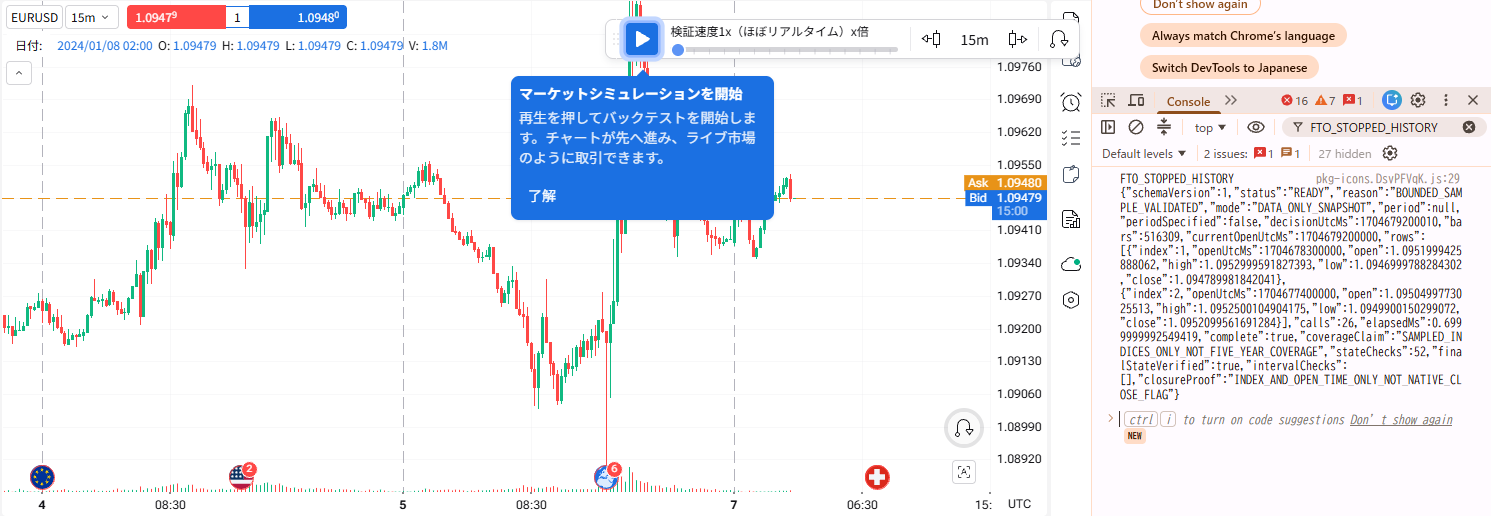
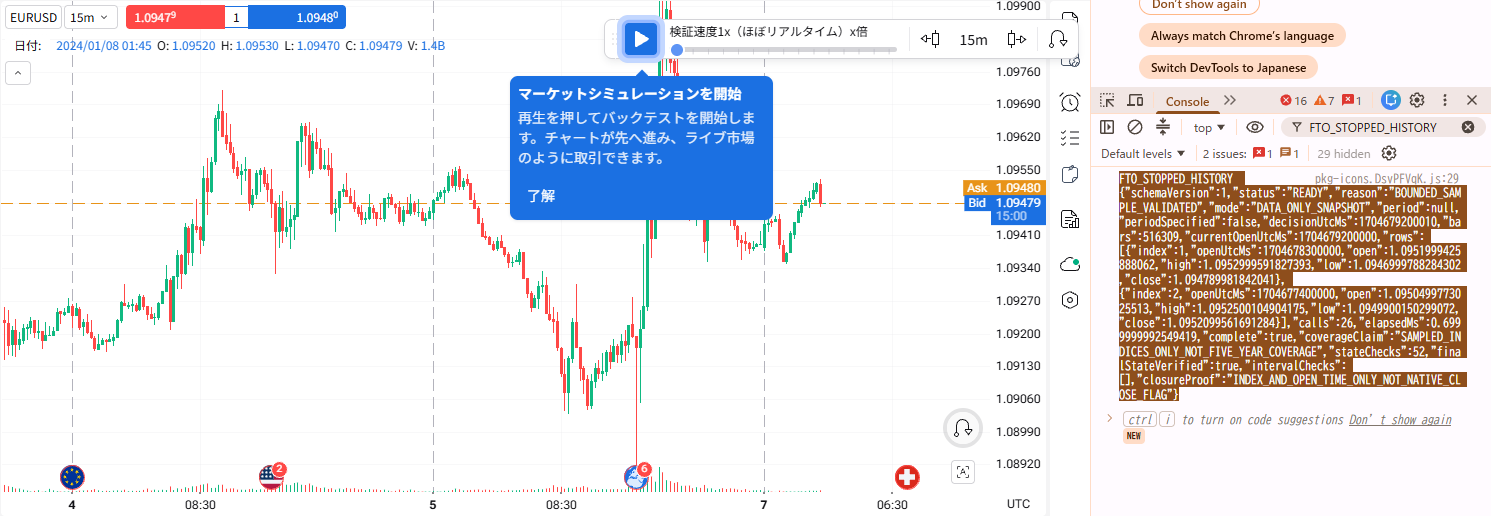
In limited EURUSD M15 tests, retrieved open, high, low, and close values matched the chart at five displayed decimal places. Two runs using the same revised version also recorded the stopped state.
Saved images of a limited earlier check, not evidence of a new run, profitability or win rate. The following H1 records cover a separate stage.
Open full-size image · Japanese UI ↗
Open full-size image · Japanese UI ↗
The later H1 work divided the history into manageable periods and checked the overlaps between them. The October 2026 project records report:
| Dataset | Recorded bars |
|---|---|
| 2021–2025 | 31,273 |
| Separate 2026 extension | 4,867 |
| Total | 36,140 |
The first figure includes 100 preparation, or warm-up, bars. The target-period count is therefore 31,173. At 17 joins, 100 overlapping bars were compared by timestamp and OHLC.
The research record still contains 316 gaps and seven unresolved exceptions. Complete coverage, bar finality and the profitability of a final trading strategy have not been established.
This established consistency in the data captured and saved. Unobserved intervals remain recorded, and complete coverage and bar finality have not been established. Data validation and the profitability of a trading strategy are separate questions.
How GPT and Claude helped
Claude Code carried out an independent code review during the early work. Its findings were used to revise the implementation, build it, and run tests. In the later research stage, Claude Code also produced a research driver, synthetic tests, and fixes following review.
Codex was also used for implementation checks, test execution, and independent calculations. The project combined creation and verification rather than assigning every stage to one assistant.
Claude Code can work with project files and help write code and tests. The useful starting point is a clear description of the required output and the evidence that will count as success. Claude Code overview
Include these details in your request
- Instrument and timeframe
- Period to examine
- Fields to record and output format
- How the output will be checked against its source
- What should happen when data is missing or an error occurs
For example, ask for timestamps and OHLC values, with duplicate and out-of-order records detected, rather than simply requesting “historical data.”
Lessons from the build
A successful run needs a meaningful comparison. A count on its own does not establish that the right symbol, timeframe, or period was captured.
Longer periods need a saving plan. Splitting the work into intervals and checking overlapping records helped us inspect the joins instead of assuming the files fitted together.
Code generation and browser operation need separate checks. File selection and browser connections were obstacles during the project. Keeping the output and a clear record of completed steps made it easier to resume.
Check Pro’s features for custom-tool development
The official plan comparison lists custom indicators, EAs, custom timeframes, and automation under Pro. Those are the features to review if you want to experiment with your own code. A free demo is available for trying the interface, but its limits exclude custom indicators and EAs. FTO plans and features
Lifetime Pro pricing and the USKFTO example
On November 6, 2026, the Japanese official page displayed a Black Friday Mega Sale with Pro Lifetime reduced by 50%, from JPY 60,000 to JPY 30,000, and Starter Lifetime reduced from JPY 45,000 to JPY 28,000. This does not mean every plan is 50% off. These are one-time plans, and the page notes that taxes may apply. Annual-plan discounts and the exact sale deadline remain unverified. Official Japanese pricing
Separately, the Lifetime Pro checkout supplied by USK on November 5, 2026 shows:
| Checkout item | Amount |
|---|---|
| Before coupon, excluding tax | JPY 30,000 |
| USKFTO discount | −JPY 4,500 |
| After coupon, excluding tax | JPY 25,500 |
| Displayed tax, 10% | JPY 2,550 |
| Total, including tax | JPY 28,050 |
Open full-size image · Japanese UI ↗
The code reduces the JPY 30,000 pre-tax amount by 15% in this example. Adding 50% and 15% together and calling it “65% off” would be incorrect.
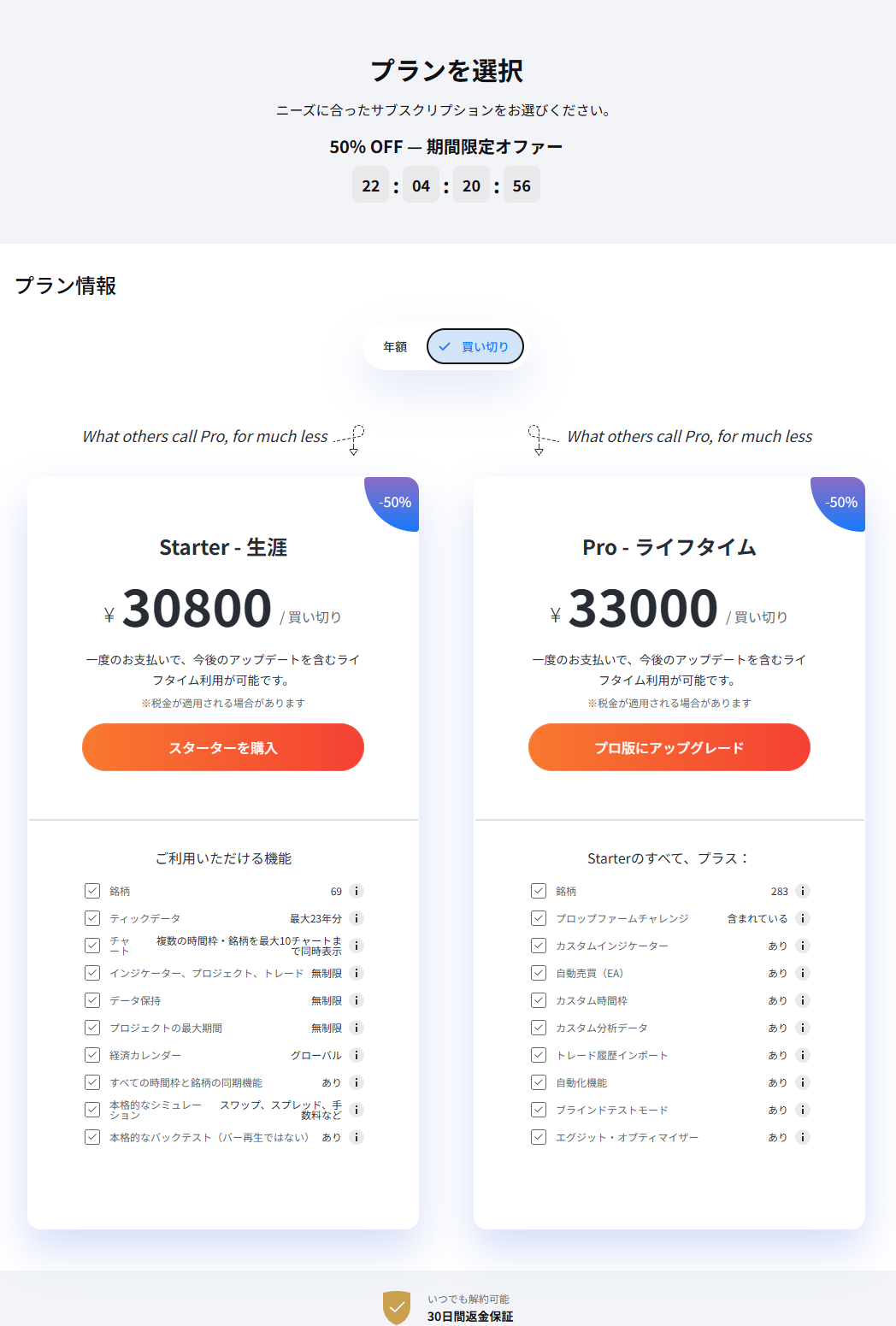
A separate plan screenshot displays Starter at JPY 30,800 and Pro at JPY 33,000, with an “Upgrade to Pro” button. New-purchase and upgrade flows may differ, so check the selected product and final total in your own checkout.
Open full-size image · Japanese UI ↗
Prices, coupon eligibility, and offer periods can change. JPY 28,050 is the amount shown in the supplied example. Tax and currency may also differ outside Japan.
Build around the question you want to test
Use GPT or Claude to make your idea specific, then try it against historical markets in FTO. Start with a small, observable purpose: read a price, record a condition, or compare an output with the chart.
That gives you something concrete to improve. As your rules become clearer, the tool can develop alongside the questions you want your testing to answer.
For the basics, see our FTO practical guide. For related platform changes, see our 33rd and 34th Release overview.
 Our practical FTO guide
 FTO 33rd and 34th Release overview